¶ Login
The admin interface is reachable through several equivalent URLs, each useful in a different situation:
https://defend-o-tron.protected.lan/— preferred. Goes through the device's reverse proxy with its built-in DNS. Cleanest experience once you've installed the Root CA.https://<management-ip>/— same proxy path, by IP. Works without DNS configuration.https://<management-ip>:9090/— direct to Cockpit on port 9090, bypassing the reverse proxy. Useful for troubleshooting if the reverse proxy is misbehaving.http://<management-ip>:9090/— plaintext Cockpit on port 9090. Convenient before the Root CA is installed; always switch to HTTPS for everyday administration.
Configuring the built-in DNS is the preferred method to browse securely to the Defend-O-Tron — it gives you a stable hostname and a clean HTTPS connection once the Root CA is in place.
¶ First time login
The default username and password are: admin/admin
- You will be required to change your password before continuing.
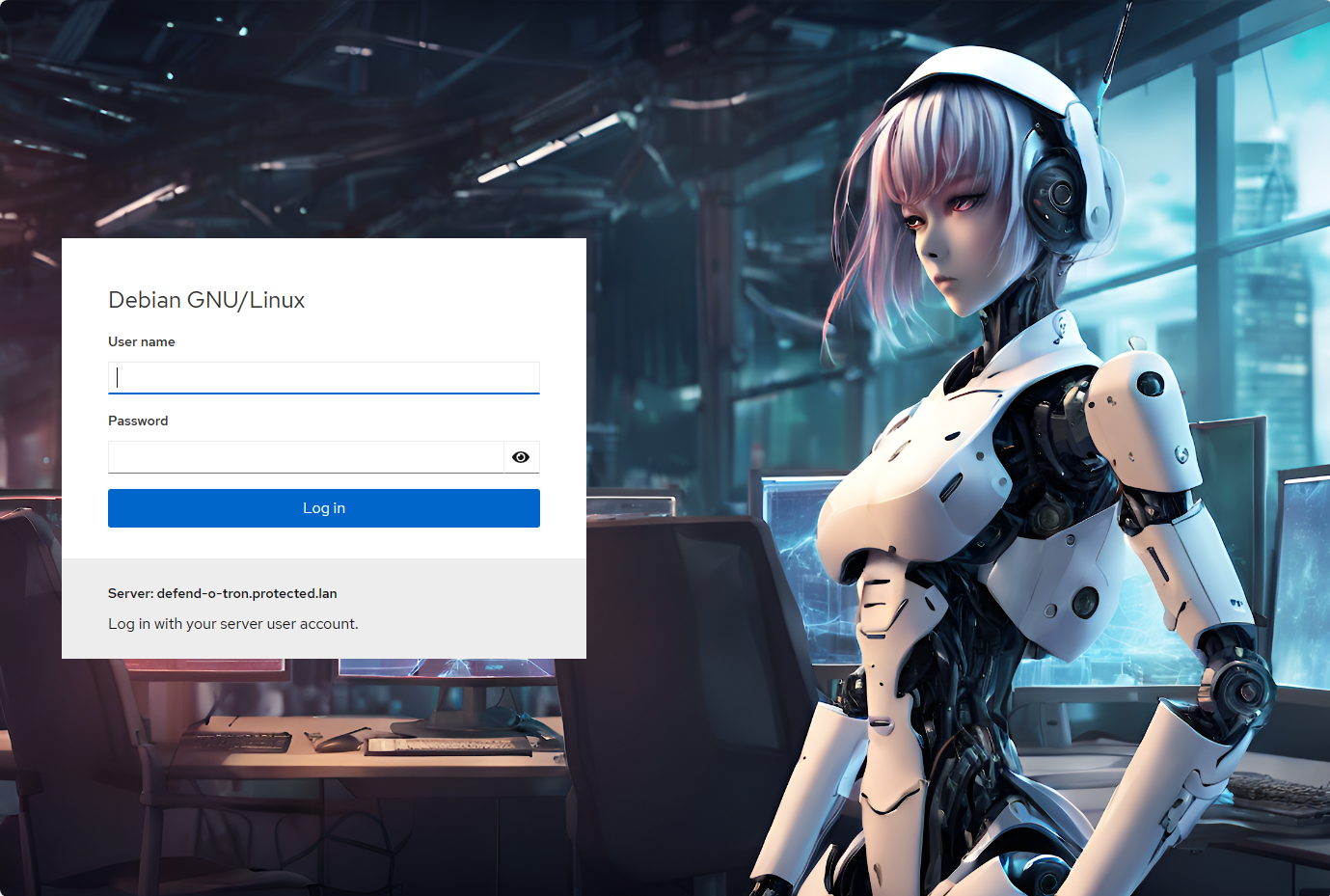
Upon successful logon you'll proceed to the overview section.
¶ System Section
¶ Overview
The Defend-O-Tron administration interface is a customized version of Cockpit. Only the necessary packages have been installed to manage the device.
Installing additional Cockpit modules on the dashboard is not recommended, as it consumes extra resources and may cause your Defend-O-Tron to run into performance issues.
The admin interface follows your browser's appearance preference automatically. Use the appearance toggle in Cockpit's top-right menu to choose Auto (matches your operating system), Light, or Dark. All built-in pages — including Firmware Image, Root CA Download, Cyber-Threat Dashboard, and System Metrics — update to match.
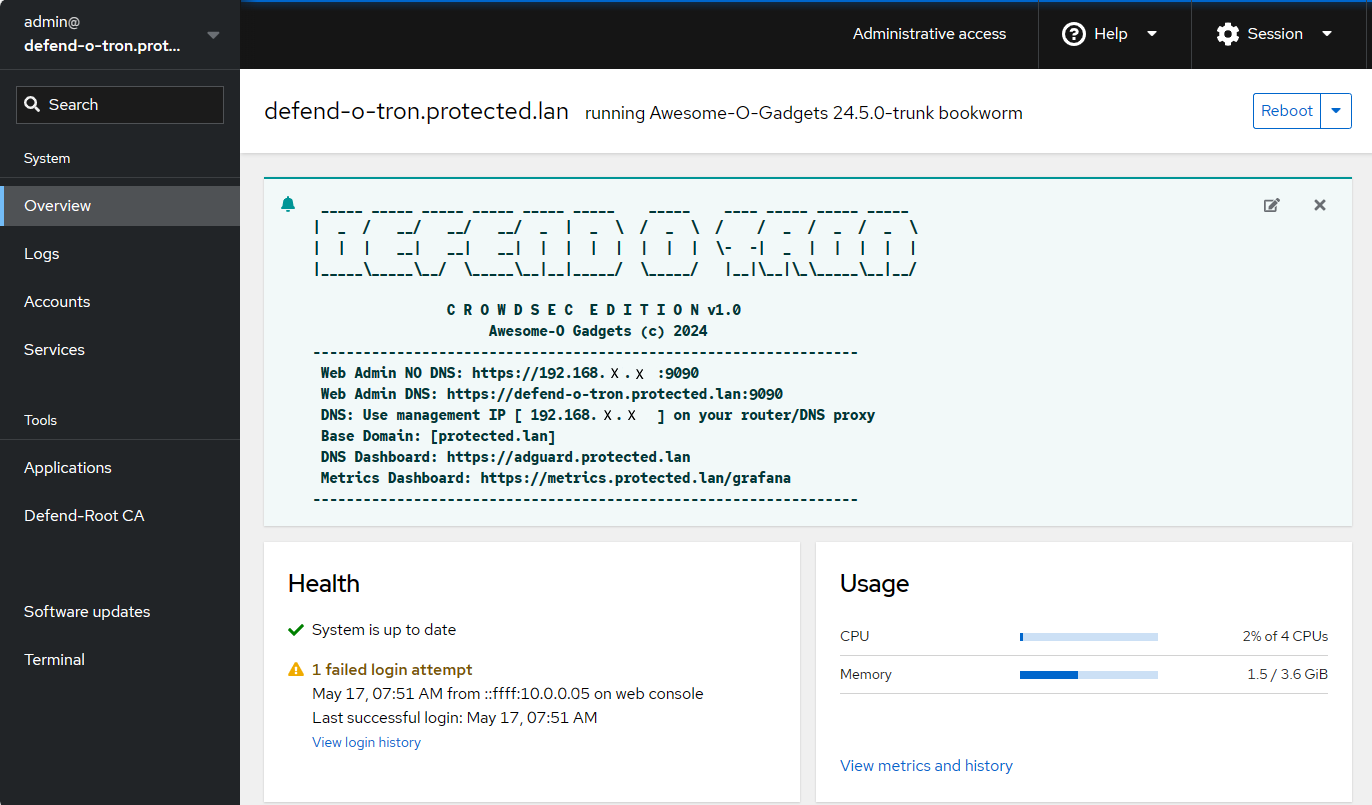
This overview allows you to preview system health, system information, usage statistics, and basic configuration. You can Reboot and Shutdown the device from the Overview page as well, this is the recommended way to safely restart the device.
¶ Panels
Each panel gives you overview information on various system components.
- Health provides information on software updates and authentication
Click the View login history for additional information - Usage provided information on hardware and network statistics
Click the View Metrics and history link for additional information - System information provides the uptime and your unique Defend-O-Tron identifier
- Configuration reports on hostname, timezone and cpu performance governor.
Secure shell fingerprint keys are unique to each device.
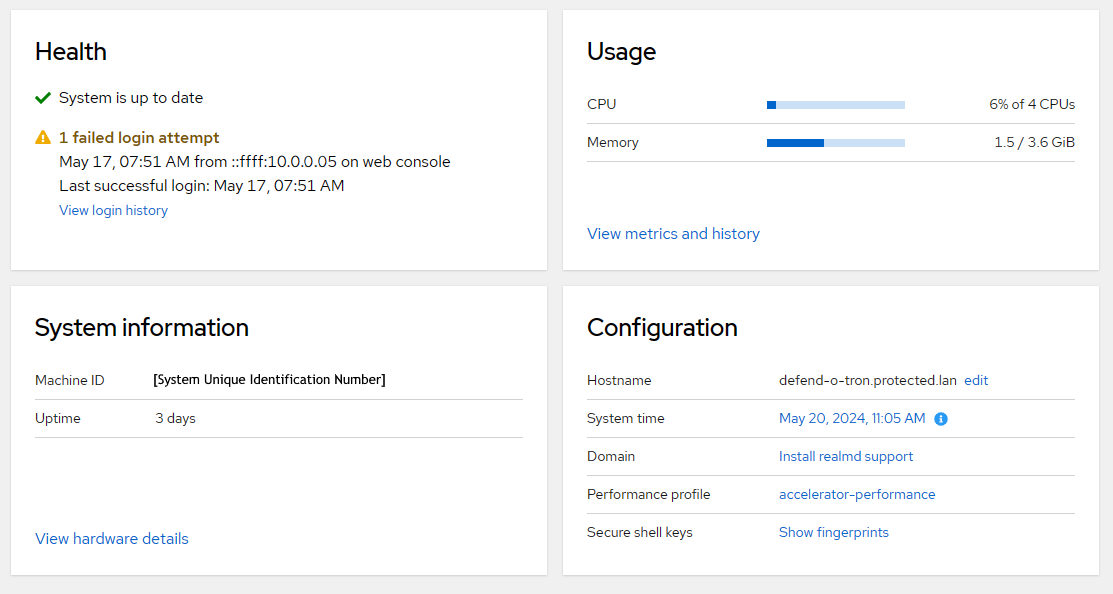
The performance profile is pre-configured for the best device performance, and it is not recommended to change this setting.
Changing the Hostname or installing Realmd will break certain functionality of the Defend-O-Tron. You've been warned.
¶ Timezone
- The default timezone for the Defend-O-Tron is UTC +00
You can set the local device timezone by clicking on the System time link in the configuration panel and choosing a timezone.
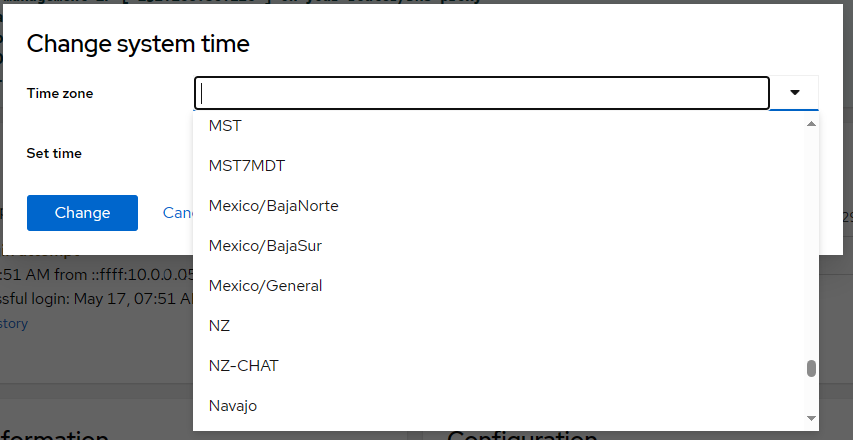
Click the Change button to finish the timezone change.
¶ Metrics
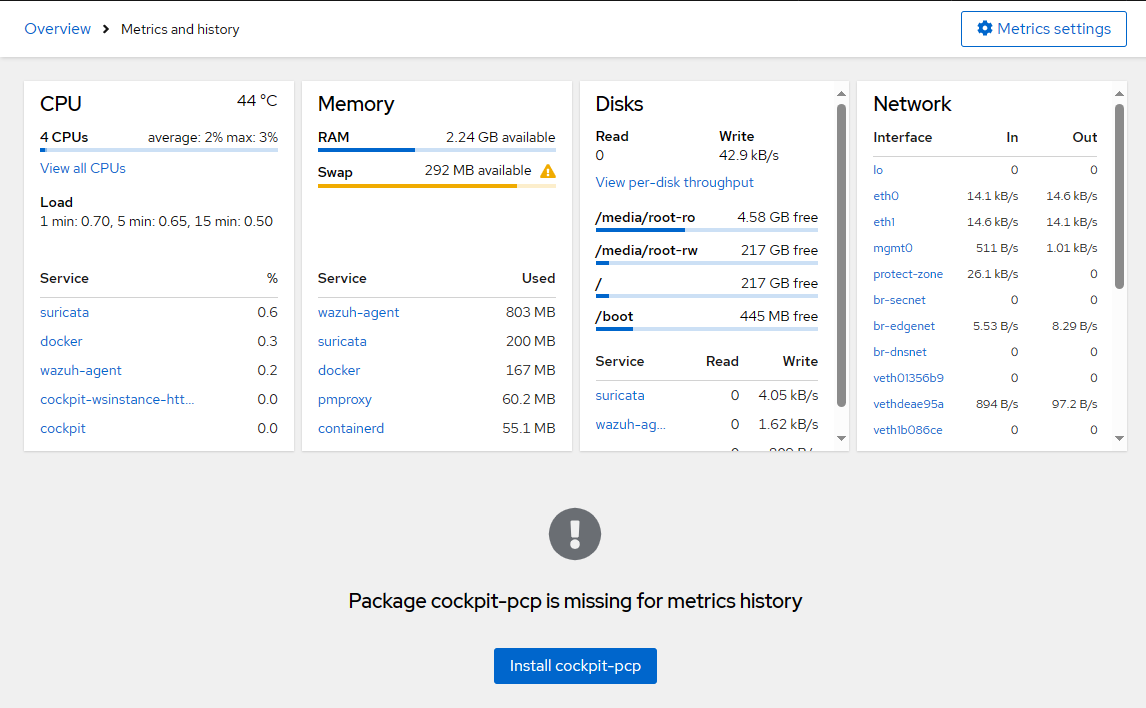
Provides a realtime and detailed overview of CPU, Memory, Disk and Network activity.
The Performance Co-Pilot is not pre-installed and shouldn't be added. The richer system statistics live in the dashboards — Grafana with pre-built panels for cyber-threats, CrowdSec metrics, NIS2 evidence, Traefik proxy, and system status.
¶ Logs
Documentation for the Cockpit Logs page is coming soon. The page itself is fully functional — open it from the System sidebar to browse system journal entries.
¶ Accounts
Documentation for the Cockpit Accounts page is coming soon. The page lets you add, remove, and manage local user accounts on the device.
¶ Services
Documentation for the Cockpit Services page is coming soon. The page provides start, stop, restart, and live status for every systemd service on the Defend-O-Tron.
¶ Tools Section
¶ Root CA
The Defend-O-Tron has a built-in CA public certificate that you can export for use in the following:
- Fully trusted HTTPS to the admin interface and the AdGuard DNS console
- Fully secure CrowdSec API for remote bouncers (the bouncer host must trust the device's Root CA)
- Fully secure syslog forwarding (planned for a future release)
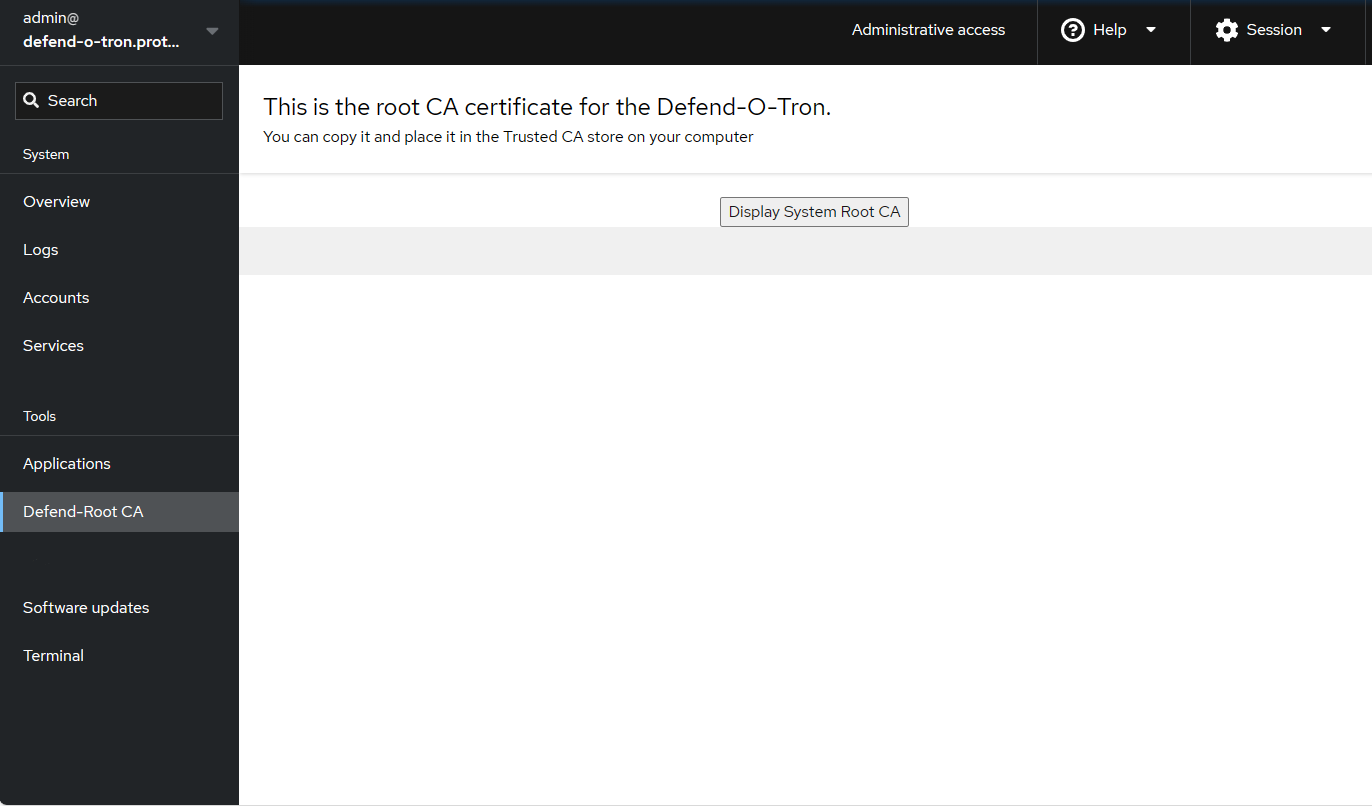
Setup instructions are here.
¶ Firmware Image
The Firmware Image page handles full firmware updates — staging a new release, applying it on the next reboot, and rolling back if anything's off. It also lets you return to the original factory image at any time as a last-resort recovery option.
The Defend-O-Tron checks for new firmware on its own once a week, so the page reads up-to-date most of the time. When an update is offered, a blue Update available banner appears with a single button to start the process.
See Firmware Update for the full walkthrough.
¶ Software Updates
The Defend-O-Tron has built-in automatic software update notifications. A  symbol appears beside the Software Updates menu item if there are urgent operating-system updates available to install.
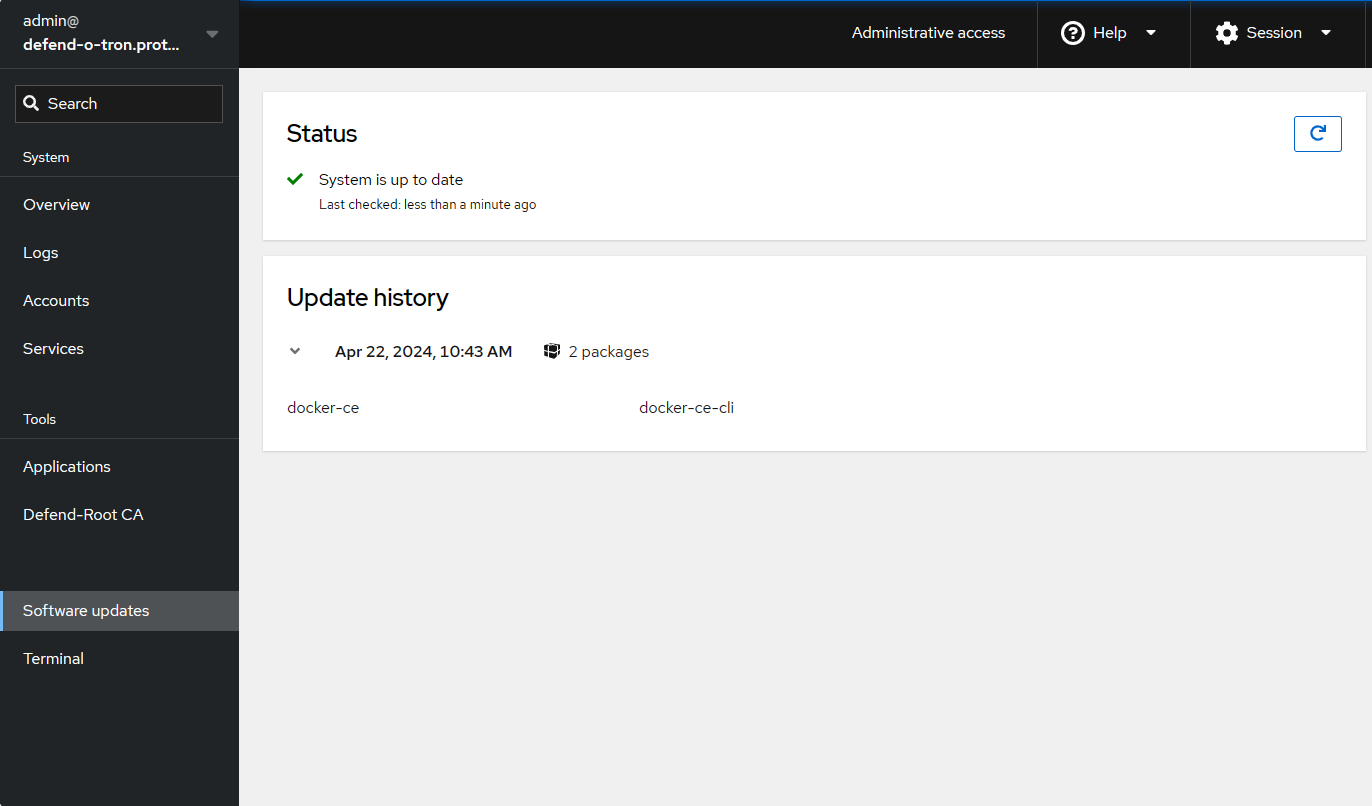
Software Updates handles routine Debian package updates — security patches, library upgrades, the things that keep the underlying OS current. Full firmware-image updates (kernel, system image, partition switch) live on the separate Firmware Image page. Both are safe to use side by side.
¶ Terminal
The built-in terminal provides command-level shell access to the Defend-O-Tron — equivalent to an SSH session, without leaving the admin interface. The default shell for the admin user is zsh, with the oh-my-zsh framework for tab completion, history search, and a friendlier prompt.
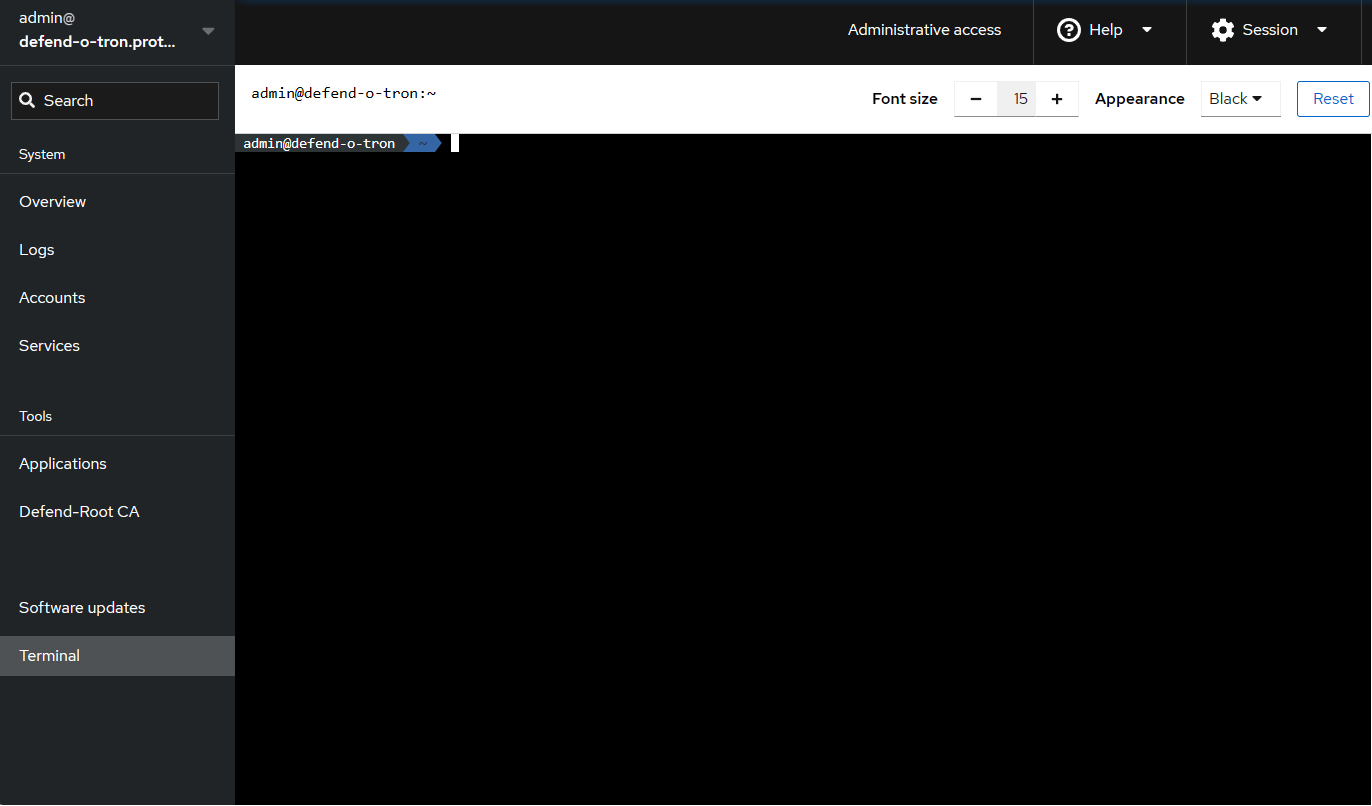
This interface is primarily used to access the CrowdSec cscli commands and the device's own do-* utilities (audit, support, image-update) until those operations get web-interface equivalents.
You can access Linux commands here as well, such as nano, sudo and htop
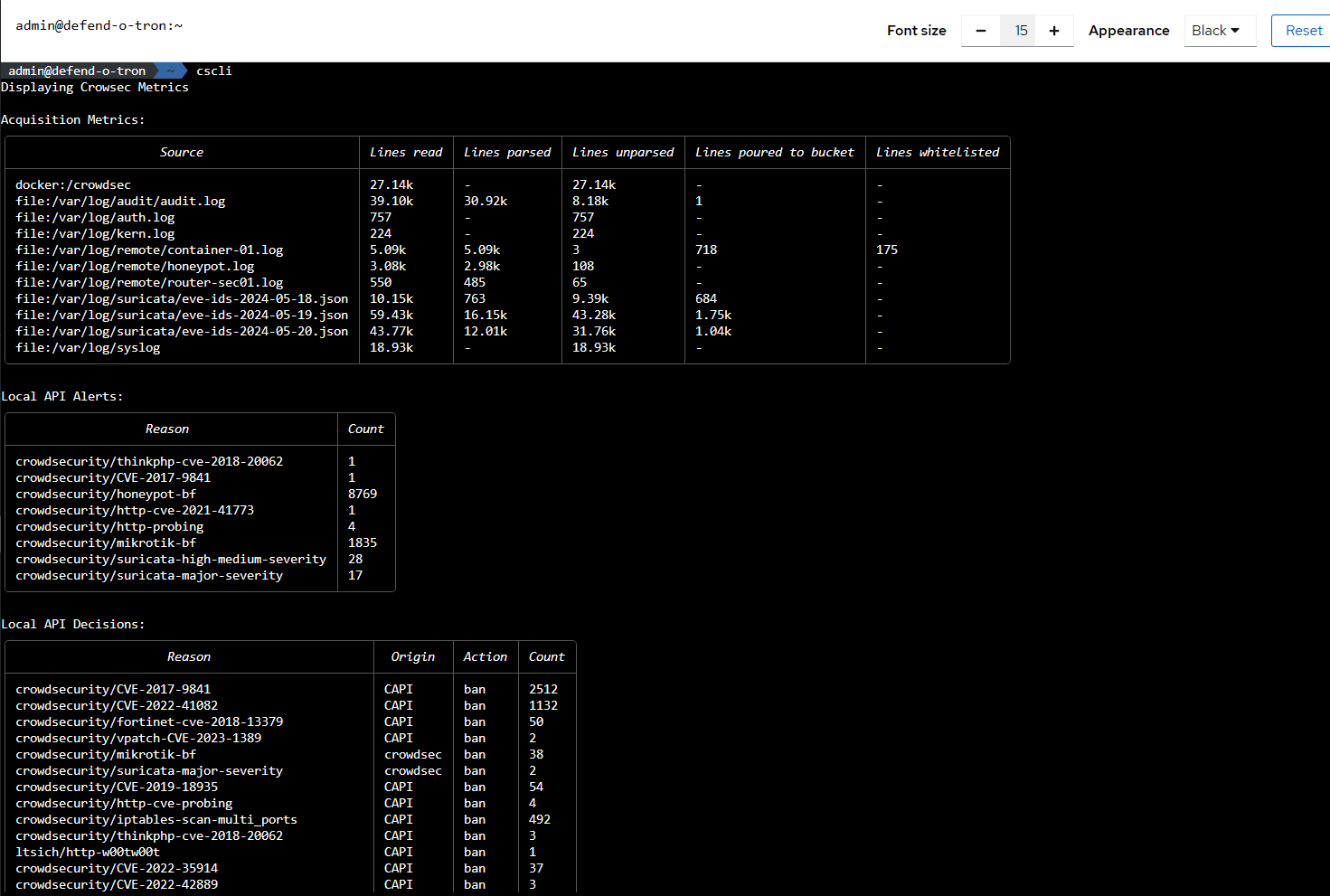
Using the cscli command with no parameters will by default display the Crowdsec Metrics
Common terminal tasks have dedicated pages:
- Compliance Reporting — generate audit evidence packs with
do-audit-report; verify them withdo-audit-verify; rotate signing keys withdo-audit-key-rotate. - CrowdSec API — manage remote bouncer keys with
cscli bouncers add,cscli bouncers list,cscli bouncers delete.
¶ Extra Status Pages
The extra system status interfaces along with the Grafana dashboard can only be accessed with use of the Defend-O-Tron DNS either on your LAN or workstation.
¶ Traefik Status Dashboard
Located via the link in the admin console tools menu > Proxy Status
¶ Timeseries Metrics Web UI
Located via the link in the admin console tools menu > System Metrics