¶ Dashboard
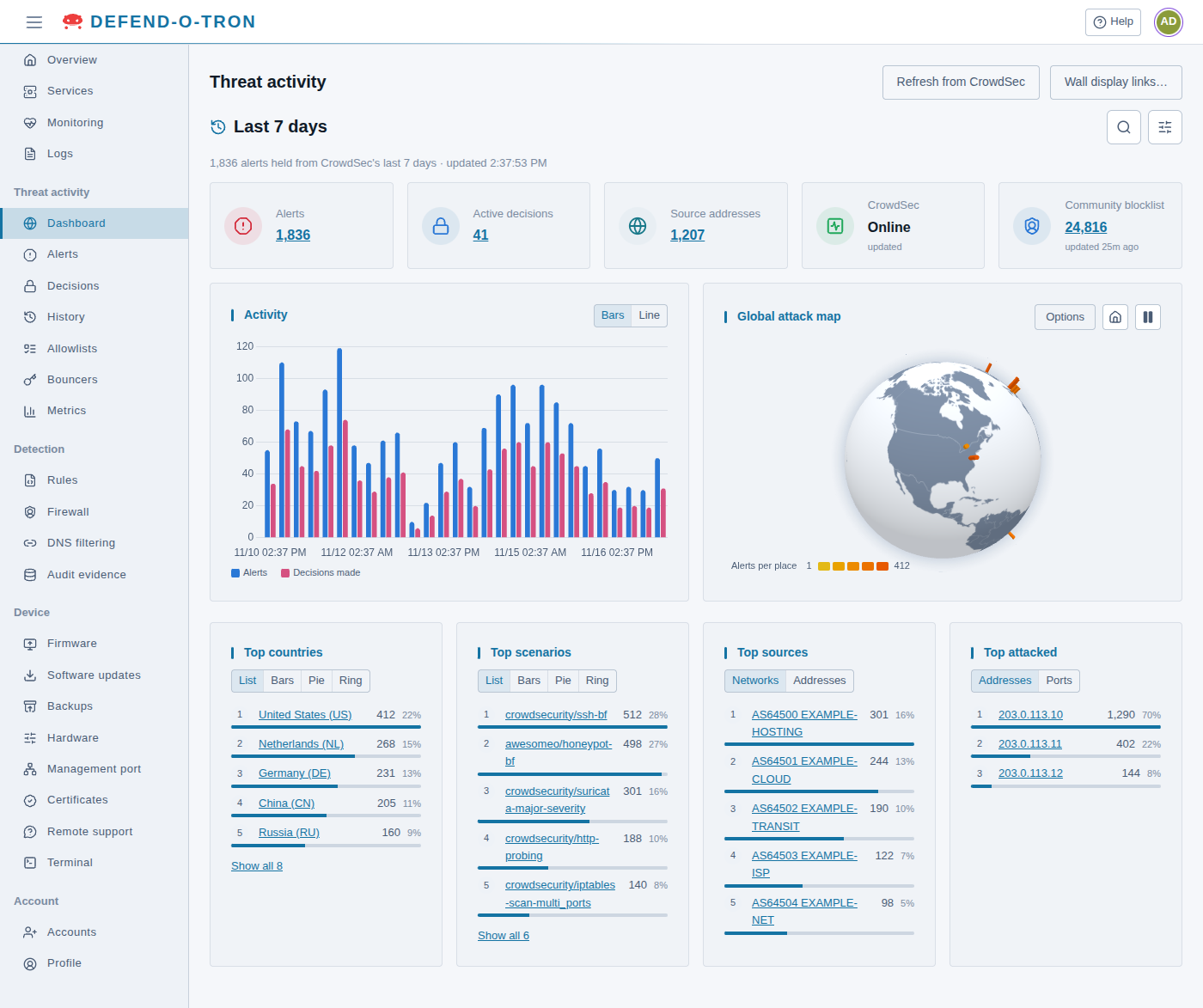
Threat activity → Dashboard is a global view of the attacks CrowdSec has detected against your device. Everything is drawn on the device itself, and nothing is fetched from the internet.
The dashboard shows the last 7 days unless you choose another period (see Choose what it shows below). It keeps itself up to date while it is open: new alerts arrive live. If the connection drops, it says Live updates paused; reconnecting…, and Reconnect tries again at once. Refresh from CrowdSec reads CrowdSec’s figures again straight away.
¶ What it shows
- Totals: the alerts, the active decisions (bans), the source addresses, whether CrowdSec is online, and how many addresses the community blocklist holds. Select the community blocklist total to open Community protection: the addresses other CrowdSec users reported, and any lists this device subscribes to, each with its number of addresses and the top ten reasons. The firewall blocks them all, but they are not listed with this device’s own decisions.
- Activity: alerts and the decisions made over time, as Bars or a Line.
- Global attack map: a globe with a dot where attacks come from. Bigger, warmer dots mean more alerts from that place (the key is Alerts per place). See The global attack map below.
- Top lists: the top countries, scenarios (attack types), sources (as Networks or Addresses) and attacked addresses (as Addresses or Ports). Show each one as a List, Bars, a Pie or a Ring.
Select anything (a number, a country, a dot or a bar) to open the matching alerts on the Alerts page.
¶ Choose what it shows
The two buttons beside the period narrow down what every part of the page shows:
- Search (the magnifier) finds alerts by scenario, address, country or network.
- Filters (the sliders) sets the Period and the filters:
- Period: the last hour, 6 hours, 24 hours or 7 days, or Custom… for the last so many minutes, hours or days (from 1 minute to 7 days, as far back as CrowdSec keeps alerts).
- Add a filter: choose a field (scenario, source address or range, country code, AS number or name, decision, decision origin, simulated, machine, attacked address or attacked port), type a value, and tick not to leave those alerts out. The field suggests the values in the period, with how many alerts each has.
- Filters in force lists the filters you added. Clear filters removes them all, and Done closes the panel.
Your period and filters are saved with your account, so they are still there the next time you sign in. When you select something on the dashboard to open its alerts, they go with you to the Alerts page.
¶ The global attack map
- Drag the globe to turn it, and use the mouse wheel to zoom. Pause the globe stops it spinning, and Spin the globe starts it again. Reset the view goes back to the start.
- Options adds Day and night, shaded from where the Sun is at your computer’s time, and Attack direction, which draws an arc from each new alert’s place to your device.
- The arcs end where you said the device is, with a flag giving its name and town. Set the place in the Setup wizard (see Location) or later on Device → Hardware, on the Time zone config tab. Without a place, the map uses the main city of the device’s time zone.
- If your browser cannot draw the globe, a flat map is shown instead.
¶ Wall display links
Administrators can show the dashboard on a screen, for example in reception or the IT office, without anyone signing in.
- Click Wall display links…, then New display link….
- Name the screen, and choose when the link expires: never, or after 1, 7, 30, 90 or 365 days.
- Click Create link, then copy the link and open it on the screen.
A display link opens a read-only view with the totals, the map, the timeline, the top lists and the latest alerts, and nothing else. Anyone holding the link can see that view, so treat the link like a password. In the same dialog, each link has Show link, Replace link… (a new link, so the old one stops working) and Revoke… (the link stops working).
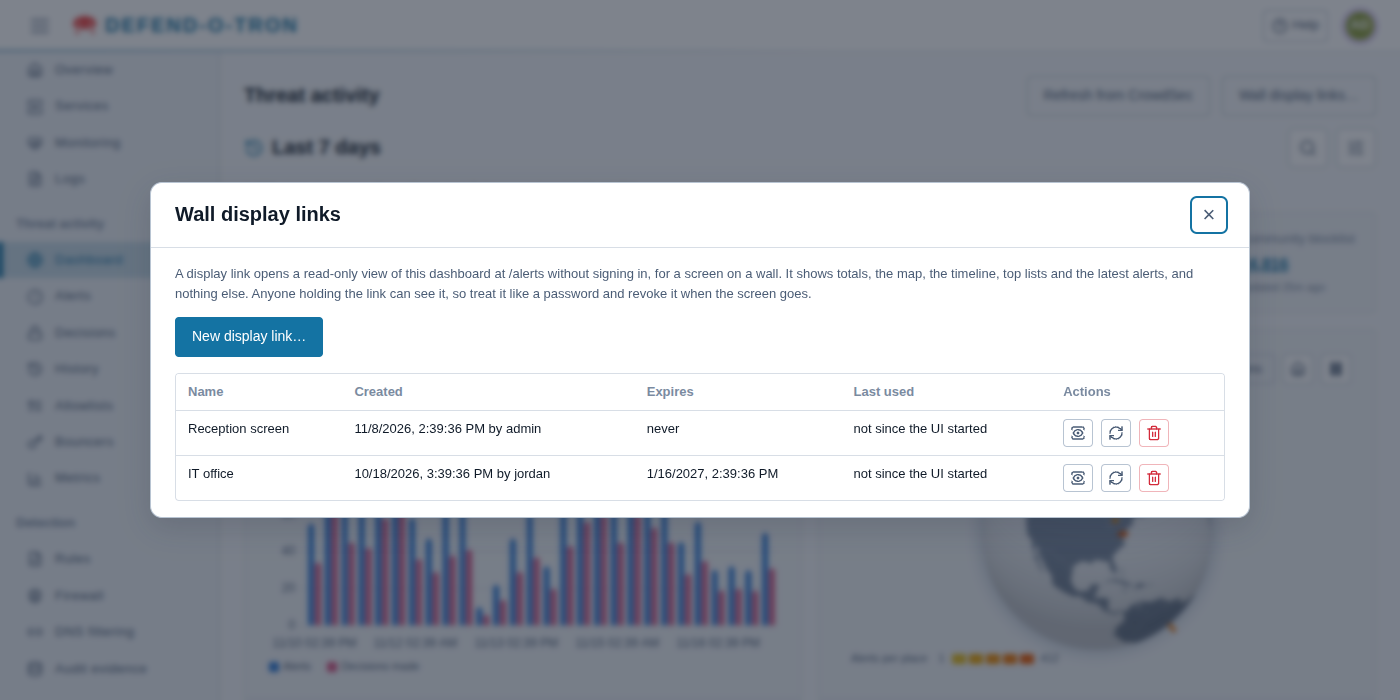
On a V200, the same dialog can also show the wall on a monitor plugged into the Defend-O-Tron itself (HDMI, DisplayPort or USB-C): Wallboard on this device’s monitor. Anyone in front of the screen can see it. The screen turns off after a timeout without mouse movement (4 hours unless you change it).
¶ Related
- Threat Activity: the other Threat activity pages.
- Honeypot: how scans become bans.
- First-Time Setup: setting the device’s place on the map.